I take a screenshot because there is something worth keeping: an interface detail, a useful setting, a reference I want to come back to. Saving it is easy. Finding it a few weeks later is where the system falls apart.
The filename tells me when I took it. It rarely tells me why.
RaindropShot connects that habit to a place I already use for collecting references: Raindrop.io. It watches my screenshot folder, prepares a useful name when on-device intelligence is available, and uploads the image. After a confirmed upload, a separate retention setting decides what happens to the local copy.
The current version is a native Mac app, with a compact menu bar panel and a background worker. This write-up covers the newer local build I am using on my Mac.
One glance should answer the important questions
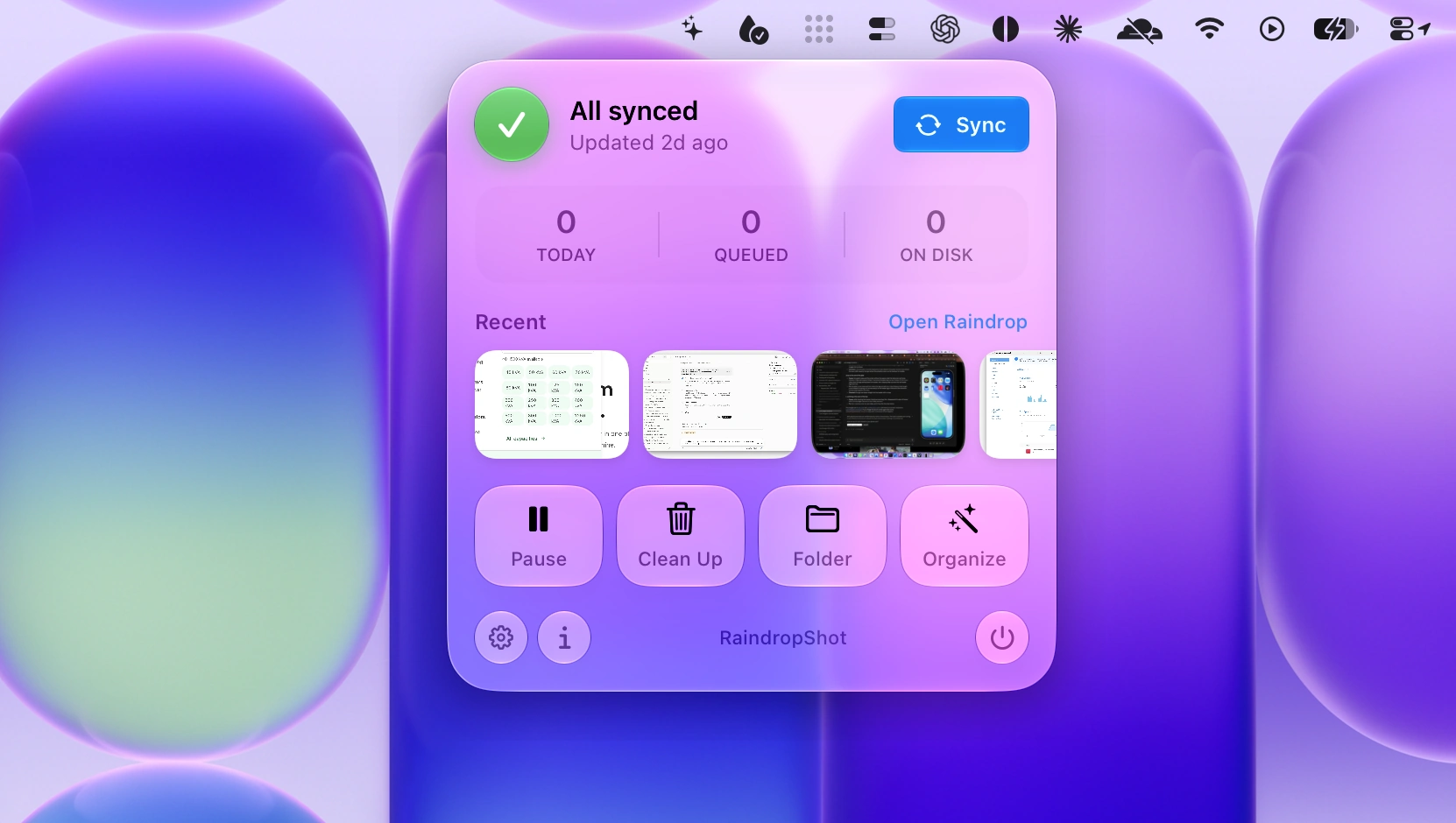
The menu bar panel has a small job. I want to know whether the app is working, whether anything is waiting, and whether the screenshot I just took has made it to Raindrop.
The newer interface puts a status summary at the top, followed by counts for Today, Queued, and On Disk. Those are different states. An image can already be uploaded and still be on the Mac because its retention period has not ended.
Recent uploads sit close to the actions I need most often. The panel gives me a route back to the reference, while settings hold the less frequent choices: screenshot folder, upload delay, retention, naming, and collection.
That separation matters for a background utility. Its everyday interface should let me check a result and get back to what I was doing.
Give a screenshot a name I might actually search for
Screenshot 2026-10-17 at 4.30.00 PM.png is an accurate filename. It is a poor description of a reference.
The naming system asks Apple's on-device model for a short filename, a readable title, and a brief description. The filename is then sanitized before it reaches the filesystem. Naming can apply to the local file, the Raindrop bookmark, or both.
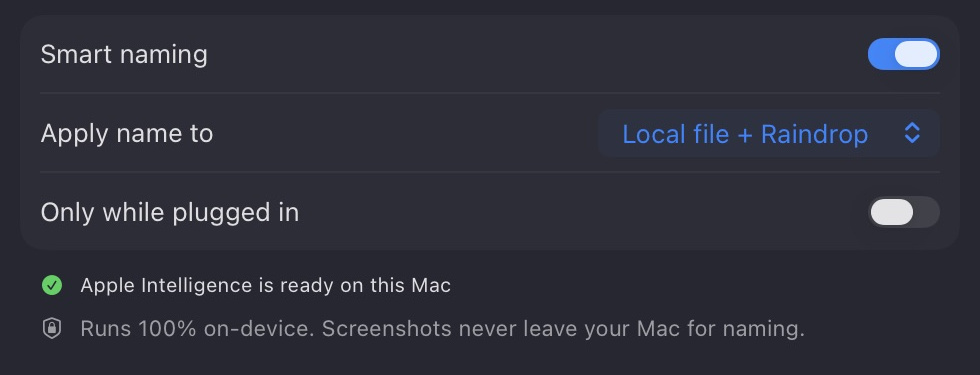
There are ordinary situations where intelligence cannot help: the model is unavailable, a request fails, or a power-related setting delays the work. The upload pipeline needs a usable fallback. A screenshot with its original name is still worth saving.
Local analysis also has a clear boundary. The naming step runs on the Mac; the screenshot is subsequently uploaded to Raindrop because that is the service the app is syncing with. Those are separate operations, and the interface should make that relationship understandable.
Uploading and cleaning up are different decisions
The most consequential part of this utility is what happens to a file after it has been captured.
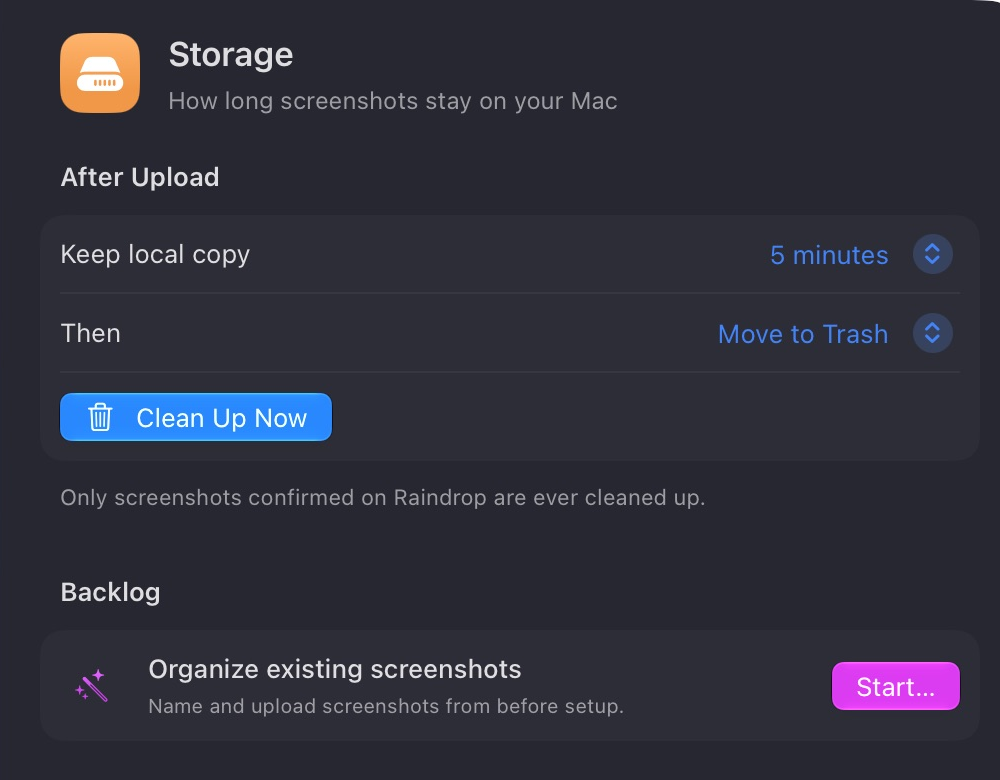
I separated upload delay from retention. Upload delay controls when a screenshot becomes eligible to sync. Retention controls how long the local copy stays after the upload is confirmed.
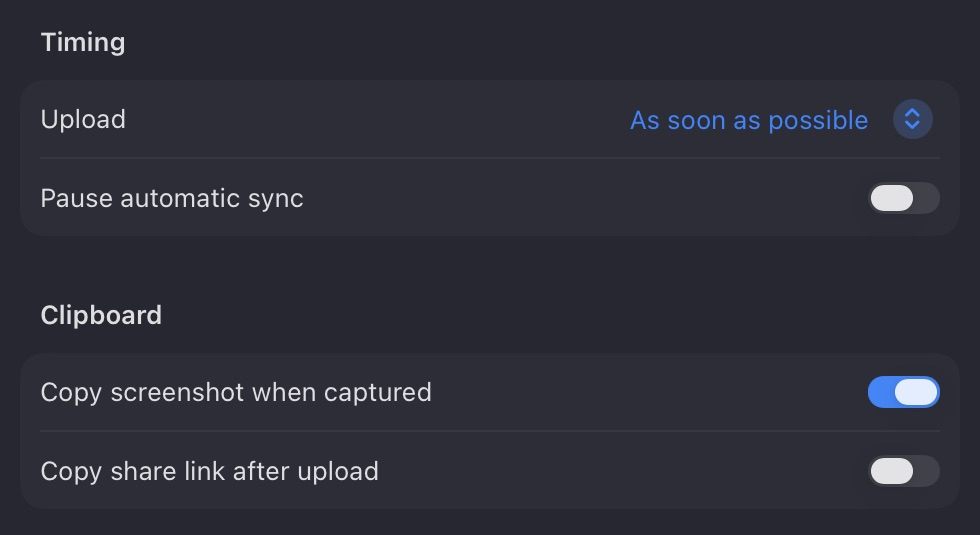
The pipeline checks that the file has finished writing, attempts the upload, and records the result. Failed uploads remain eligible for retry. Local cleanup waits for a confirmed upload and the configured retention period.
There is another important case: I upload a screenshot, then edit the local file. Cleanup checks for that modification and keeps the changed file. An old upload should not be treated as a backup of a newer edit.
The default cleanup action is Move to Trash. Keeping files indefinitely is also an explicit choice.
Let the background work finish
The app has two parts. The menu bar controller presents the interface, using SwiftUI views inside an AppKit shell. A separate worker scans, processes eligible screenshots, records its state, and exits.
macOS launchd starts the worker on the configured schedule. Between runs, that worker is no longer a resident process. The menu bar app can remain available without being responsible for keeping the sync loop alive.
That distinction is more useful than a broad “zero memory” claim. The worker exits between checks; a visible native app still has a memory footprint. I would measure the current build again before attaching performance numbers to it.
A utility I can trust to stay out of the way
RaindropShot brings together a few modest decisions: clear status, useful names, explicit retention, and background work with a defined end.
The next thing I want to learn from using it is whether the panel makes failures as easy to understand as successful uploads. A queued image, an expired connection, and a missing folder each need a specific next action. That is where a small utility earns its place in the menu bar.
The RaindropShot repository contains the project. The interface shown here comes from my current local build; it may be ahead of the public source.